- URL: https://www.laruence.com/en/2020/05/21/5880.html
- Please include attribution when republishing.
The most efficient way of typing has one sure characteristic: your fingers leave the keyboard as few times as possible. And while typing, the distance your fingers travel across the keyboard should be kept as short as possible. That's why I know several veteran programmers who use Vim but avoid ESC — they use ctrl+[ instead, and even this:
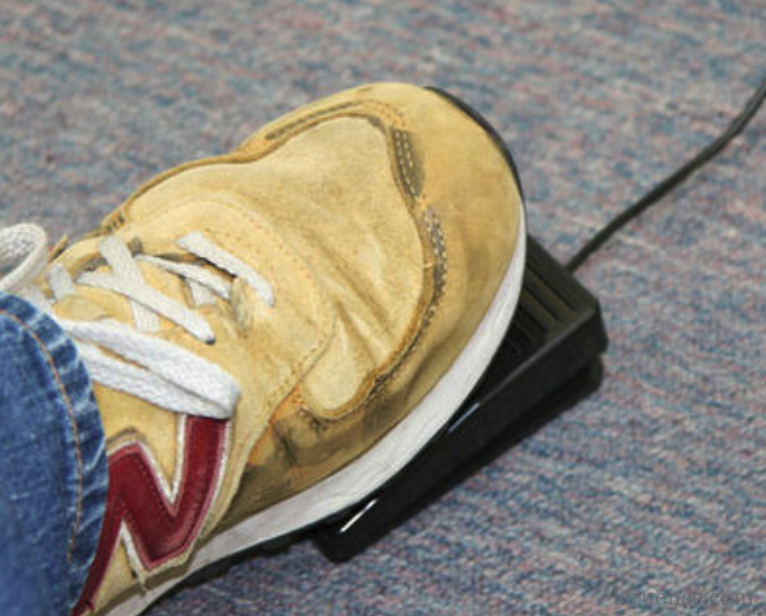
to avoid their fingers having to span too much of the keyboard.
I've always used a MacBook as my work machine, and I've always logged into remote servers with iTerm2 to do development, because PHP is a large project and compiles slowly — no matter how powerful your laptop is, you can't run make -j without it hanging.
Getting back on point: on Mac there's a very handy command called pbcopy. It lets us avoid using the mouse to select text and copy it to the clipboard, so our hands can stay on the keyboard the whole time. The bad news is that pbcopy only works on the local machine, and I spend a lot of my time on remote machines.
Recently I discovered an interesting one — OSC 52, i.e. the "52" in the ESC ] (Operating System Command) family of ANSI escape codes. It provides the ability to access the local clipboard.
Its form is:
echo -e "\e]52;c;$(base64 <<< php)\a"
That is, it starts with \e]52;c;, followed by the base64-encoded content, and ends with \a. If the terminal supports it, then the text "php" in the example above will land in your clipboard, and you can paste it with command + V.
For iTerm2, which I use a lot, you just need to turn on this option:
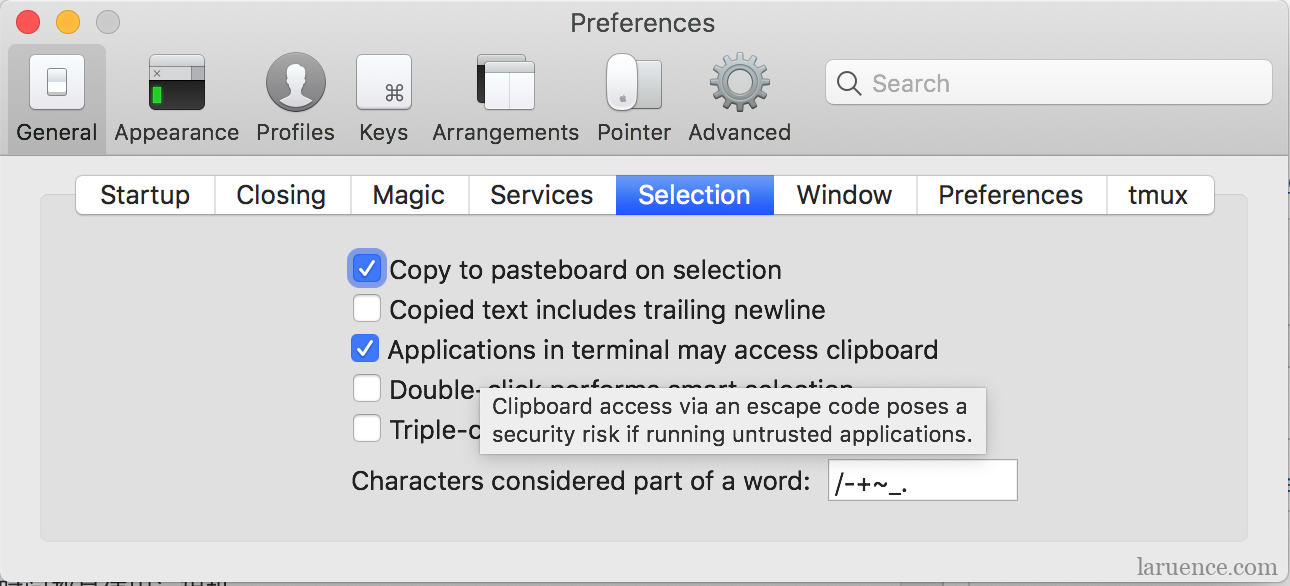
With this, we can easily write a pbcopy that works on remote servers. Taking PHP as an example (
you can also just download it directly: OSC52.php):
#!/bin/env php
<?php
$data = trim(file_get_contents("php://stdin"));
echo "\033]52;c;", base64_encode($data), "\007";
Then add execute permission to this file, rename it to pbcopy, and give it a try:
echo "osc52 codes" | ./pbcopy
Then try pasting with command+V?
This is much nicer now — it avoids having to use the mouse to select and copy text. Your hands can stay on the keyboard the whole time, which massively boosts productivity!
That said, I've now started working on my iPad, and so far I haven't found a terminal app on the iPad that supports OSC 52. If anyone finds one that does, please leave a comment and let me know. 🙂
Be First to Comment