- URL: https://www.laruence.com/en/2026/08/10/6299.html
- Please include attribution when republishing.
My earlier posts mentioned my AI knowledge base, and quite a few readers asked me to share the setup. Today I'll walk through how to build a workflow that lets AI act like a real personal assistant — handling your daily work and organizing your knowledge base for you.
0x1: Who this is for
Everyone, including people who don't write code. Follow along and you can have it running in an hour. At the end you get a private AI knowledge librarian: it reads material for you, organizes notes, and answers questions about your accumulated knowledge anytime — with all the data in your own hands. It can also be used for Vibe Coding 😂.
Two notes:
- I demonstrate on macOS (my daily driver); Windows / Linux work the same, with differences called out where they exist.
- Downloads go through GitHub or winget. Some official Anthropic channels (claude.ai, the official install script) carry various restrictions in China and are frequently blocked; in my testing GitHub and winget work fine.
0x2: Why you need an AI knowledge base
First, be clear about what problem it solves.
We take in far more information every day than we can process. WeChat favorites, browser bookmarks, downloaded-but-never-read PDFs, scattered in every corner — saved in bulk, reviewed never. Saved equals forgotten.
Note apps don't solve this. However good Obsidian or Notion is, it's still just "a tidier place to store things" — organizing and retrieving remains your job. And you won't do it. Neither will I.
So what you need isn't yet another note app, but a knowledge librarian that reads for you, organizes for you, and answers questions anytime.
Then why not just use DeepSeek or another AI's web version?
Three things are missing:
- Private — the data is all local Markdown on your own disk, copyable wholesale at any moment;
- Memory — a CLAUDE.md defines who it is and how it works, and the AI reads it first on every startup;
- Material — the web version only sees what you paste on the spot; here it can read everything you've accumulated.
0x3: The overall architecture
The big picture first. Five modules, each doing its own job:
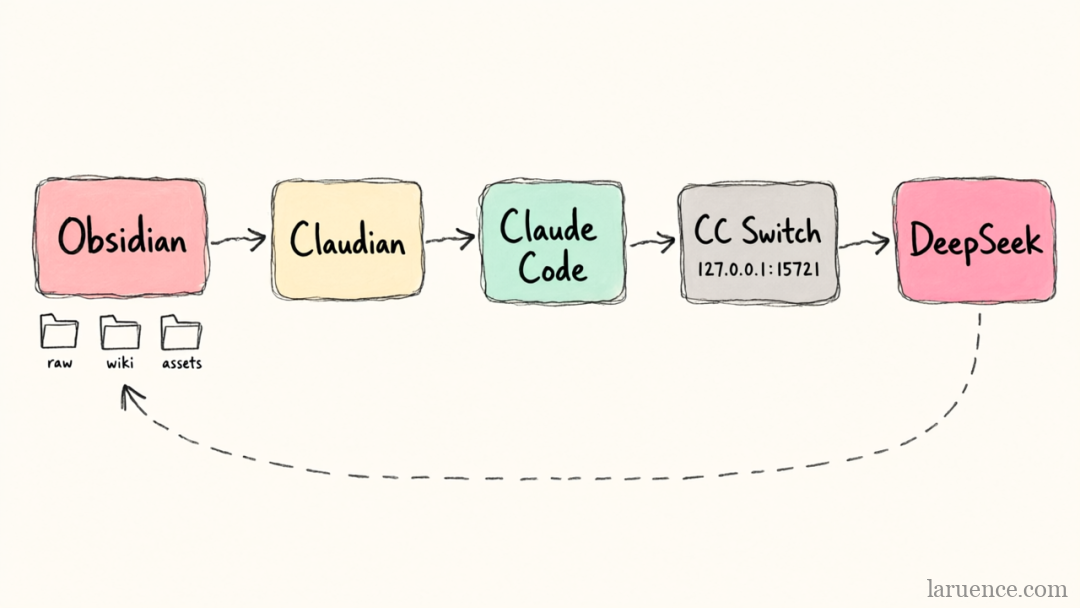
| Module | Role | In one sentence |
|---|---|---|
| Obsidian | The knowledge base itself | Free note app; everything is local Markdown files |
| Claudian | Chat entry point | An Obsidian plugin that opens an AI chat window inside the note app |
| Claude Code | The engine | AI Agent runtime: takes requests, reads/writes files, executes multi-step tasks |
| CC Switch | The router | Forwards Claude Code's requests to DeepSeek, with usage accounting and failover |
| DeepSeek | The brain | The model that actually thinks — domestic, cheap, strong in Chinese |
The data flow overall:
- You speak inside Obsidian
- Claudian hands the request to Claude Code
- Claude Code sends the request to the local CC Switch proxy
- CC Switch forwards it to DeepSeek
- The answer returns along the same path; Claude Code reads and writes your note files along the way
This approach sidesteps the various restrictions of using Claude directly — an Anthropic account, a foreign credit card, and so on.
Now let's install. Order: Obsidian → Claudian → Claude Code → CC Switch → verify.
0x4: Installation steps
Step 1: Install Obsidian, set up the skeleton
Download and install from obsidian.md. Create a new vault (say, "knowledge-base").
I suggest creating the vault directly inside iCloud Drive. I work on a Mac by day and have a Windows PC at home; with the vault in iCloud Drive both ends sync automatically — one knowledge base, seamless switching.
Then create three folders at the vault root:
your-vault/
├── raw/      ← source material: PDFs, images, web archives. AI read-only, never modified
├── wiki/     ← notes organized by the AI
└── assets/   ← images and other resources
Finally, create a CLAUDE.md at the vault root. This is the soul of the whole system and deserves a word or two: on every startup the AI's first act is reading it. Who it is, how directories are divided, how material is ingested, how retrieval works, how the index is maintained — it's all written here. The quality of this file directly determines how usable the knowledge base is: with the same set of tools, whether the AI becomes a librarian or a bull in a china shop basically comes down to it. You don't need to write it from scratch — a ready-to-use simplified version is attached at the end; replace a few placeholders and adapt it to taste as you go.
Step 2: Install Claudian
Claudian is an Obsidian community plugin that embeds Claude Code into Obsidian. Once installed, you can chat with the AI right from the sidebar, and it can read and write the entire vault.
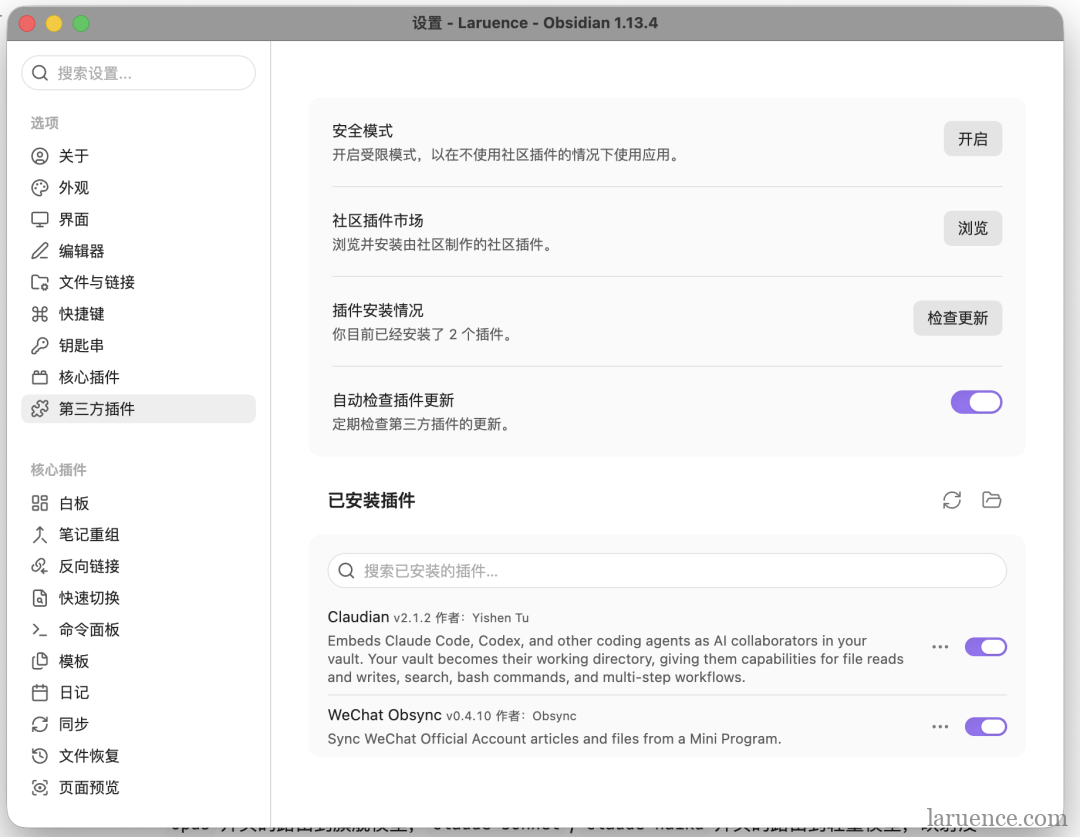
Open Settings, find "Community plugins" — on first use you need to "Turn on community plugins" — then browse the community marketplace, search for claudian, install and enable it.
Once enabled, a small robot avatar appears in Obsidian's left sidebar; click it and start chatting.

Step 3: Install Claude Code
1. macOS (if you don't have Homebrew, download from GitHub instead):
brew install --cask claude-code
2. Windows:
winget install Anthropic.ClaudeCode
Note: I don't recommend Anthropic's official "most recommended" one-liner script — claude.ai has various restrictions in China and you'll most likely get stuck at step one (you can also download and install manually from GitHub).
Verify, same on both platforms:
claude --version
A version number is all you need. (If GitHub downloads are absurdly slow: switch networks — a phone hotspot is sometimes faster, or use a GitHub download accelerator.)
Note that throughout this whole setup we never register an Anthropic account — we don't connect to official services; the next step routes requests to DeepSeek.
Step 4: Hook up DeepSeek
DeepSeek officially provides an Anthropic-protocol-compatible API, so in theory you can connect directly by hand-editing one config file, no CC Switch needed. I still recommend CC Switch though: no hand-editing JSON, one-click switching between providers, visible usage stats, and it can auto-start and sit quietly in the tray — set it once, forget it.
4.1 Get a key
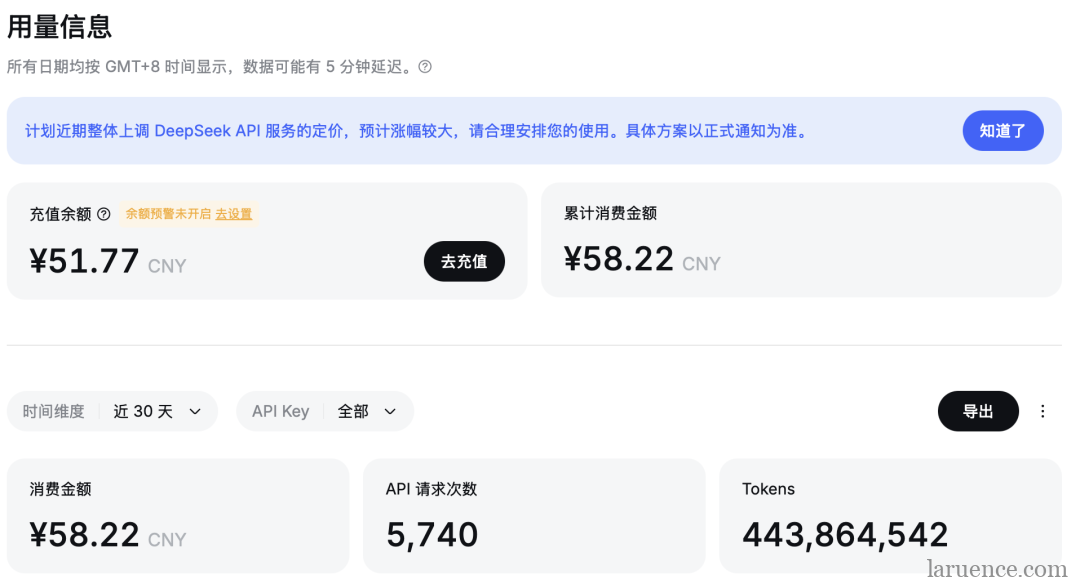
Register an account at the DeepSeek website, then go to API Keys → Create API Key in the left sidebar. Minimum top-up is ¥10; knowledge-organization workloads are light — roughly the price of a bubble tea per month. I've burned over 400M tokens for ¥58 total.
4.2 Install CC Switch
CC Switch is an open-source desktop app (official site ccswitch.io — double-check the address, and whatever you do don't search for it on Baidu; it's wall-to-wall counterfeit sites, don't ask how I know 😂), cross-platform. GitHub download also recommended: github.com/farion1231/cc-switch/releases
After downloading and installing, configuration is three steps:
- Step one, add a provider: click the + in the top-right of the main window, Add Provider → pick DeepSeek from the preset list (under the Claude Code category) → paste your API Key → save.
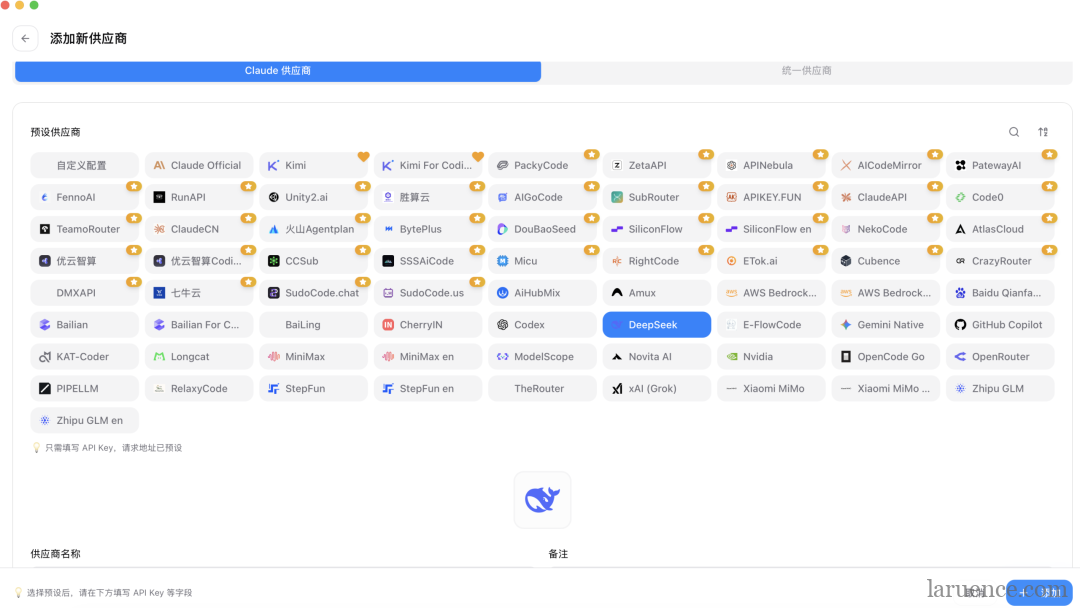
- Step two, turn on the local proxy: light up the proxy switch at the top of the main window. The proxy listens on
http://127.0.0.1:15721by default; Claude Code's requests are forwarded through it, while CC Switch logs them, tracks usage, and fails over automatically if a provider goes down. - Step three, enable: click "Enable" on the DeepSeek card. CC Switch writes the request URL and model mappings into the config files automatically — you never edit any JSON by hand.

Finally, one set-and-forget setting: open CC Switch Settings → Window behavior → enable launch at login, and set the close action to minimize to tray.
To go further, right-click the tray icon and choose lightweight mode — the main window is destroyed outright, leaving only the tray icon with near-zero idle footprint.
Of course you can add other AIs too, such as Qwen or Kimi.
4.3 The minimal setup
If you'd rather not install CC Switch, you can hand-edit Claude Code's user-level config file (settings.json in your home directory):
{
  "env": {
    "ANTHROPIC_BASE_URL": "https://api.deepseek.com/anthropic",
    "ANTHROPIC_AUTH_TOKEN": "<your DeepSeek API Key>",
    "ANTHROPIC_MODEL": "deepseek-v4-pro[1m]",
    "ANTHROPIC_DEFAULT_OPUS_MODEL": "deepseek-v4-pro[1m]",
    "ANTHROPIC_DEFAULT_SONNET_MODEL": "deepseek-v4-pro[1m]",
    "ANTHROPIC_DEFAULT_HAIKU_MODEL": "deepseek-v4-flash",
    "CLAUDE_CODE_SUBAGENT_MODEL": "deepseek-v4-flash"
  }
}
The config comes from the Claude Code integration section of DeepSeek's official docs.
This way requests go from Claude Code straight to DeepSeek — fewest components.
Step 5: Verify
Back in Obsidian, open the Claudian panel and send:
Hello, introduce yourself — what model are you running on right now?
If it responds normally and can recite the setup from CLAUDE.md, the chain is live. In CC Switch's proxy panel, the request count should be climbing.
Then toss a PDF into raw/ and say "add this to the knowledge base" — watch it archive, organize and update the index on its own.
0x5: It can evolve itself
All right — at this point your personal AI assistant is ready and can start working right now.
Here's the genuinely interesting part: its capabilities can self-iterate.
A concrete example. DeepSeek isn't multimodal, so this assistant currently can't see or generate images — PDF illustrations, screenshots and charts in the knowledge base are all invisible to it. The standard fix is writing a Skill plus hooking up an MCP.
Sound like more tinkering? No — it's one sentence; let the AI do it itself:
Write a Skill that implements image understanding and generation, using Alibaba Cloud's image-3.0-pro model
Done. Now watch it work on its own: read the docs, write the Skill, install the MCP, self-test, and hand you the result. The only thing you do in the whole process is supply an API Key (you can apply for one on Alibaba Cloud yourself).
This is the difference between an Agent and a chatbot. A chatbot answers what you ask; an Agent builds the tool it's missing. Today it's multimodal; tomorrow it can be email, calendar, web scraping — same method, one sentence.
0x6: Going further — sync WeChat Official Account articles you've read
The loop runs; now let's solve input. For most people the bulk of information comes from WeChat Official Accounts — you spot a good article, favorite it on reflex, and never look at it again.
Obsidian plugin: WeChat Obsync.
Search WeChat Obsync in the Obsidian community marketplace — same path as installing Claudian just now — install and enable. In the plugin settings click "Generate" to get a 6-digit binding code. On your phone, open the "Obsidian Sync Helper" mini program in WeChat → Settings → Bind device, and enter the 6-digit code.
From then on, when you spot an Official Account article worth keeping, tap the three dots in the top-right, choose "Open with mini program", and pick Obsidian Sync Helper.
Passing thoughts and quick notes can be written straight into it too. With Obsidian open on your computer, everything syncs into the vault automatically: converted to cleanly formatted Markdown, images downloaded locally (WeChat blocks hotlinking — without downloading, images break sooner or later), duplicates removed automatically.
Leave the rest to the AI: say "add to wiki" on a synced article, and it reads, organizes and updates the index. The input side is automated too.
0x7: Common pitfalls
All personally encountered.
- Error: Unknown model — Claude Code asked DeepSeek for a model name it doesn't know. Open CC Switch, edit the DeepSeek provider, check the model mappings (the Sonnet / Opus / Haiku tiers), change them to real DeepSeek model names, save, and re-enable.
- WebFetch says "Unable to verify if domain is safe" — before fetching a page, Claude Code sends a safety preflight request to Anthropic's official service; through a third-party route this preflight often fails. Add this to the user-level settings.json (macOS/Linux:
~/.claude/settings.json; Windows:%USERPROFILE%.claudesettings.json):{ "skipWebFetchPreflight": true }Restart Claude Code for it to take effect.
- Claudian can't find the claude command — the installed claude isn't on Claudian's PATH. Run
which claudein a terminal (Windows:Get-Command claude) to get the full path and enter it in Claudian's settings; or fully quit and reopen Obsidian.
FAQ
Why not Codex?
Search for "AI knowledge base" tutorials and plenty will tell you to use Codex. Codex is great, but it's not the tool here.
- Wrong fit. Codex is for programmers writing code; we want knowledge management. Claude Code also started as a programming tool, but several of its features happen to be designed for "living in one folder and working long-term": CLAUDE.md (project memory), Skills (reusable capability definitions), and mature file operations. As a knowledge librarian, it's the most natural fit in today's ecosystem.
- Barriers. Codex requires an OpenAI account — registration, access, binding a foreign credit card; for users in China every step is a hurdle. This setup needs only a DeepSeek key, topped up via Alipay, starting at ¥10.
- Ecosystem. The Claudian plugin used here, CC Switch's presets, the community's CLAUDE.md templates — nearly everything is built around Claude Code. Use it, and when you hit a problem you can search up an answer.
Someone will ask: isn't Codex for writing code? Without it, what about coding?
The answer: once this is installed, what you have isn't just a knowledge librarian but a complete local AI Agent. The vault is merely its default working directory; with authorization it can access other directories on the machine and execute commands — including your code repositories, of course.
My own usage: open-source projects hosted on GitHub, CI on GitHub Actions. With PHP installed locally, the entire development loop runs inside Claudian: the AI writes code, compiles and tests locally; when tests pass it commits and pushes, then watches CI results via gh. If CI goes red, the AI pulls the logs, analyzes, fixes and re-commits on its own — until it's green.
What are Opus / Sonnet / Haiku?
These are the three tiers of Anthropic's Claude: Opus is the flagship — most capable, slowest and priciest; Sonnet is the mid-range workhorse; Haiku is the lightweight — fastest and cheapest.
In this setup, though, just think of them as three "slots" — Claude Code issues requests like "give me Sonnet", and the model actually doing the work is whatever the slot maps to. The 4.3 config above does exactly that: Opus and Sonnet both point to DeepSeek's flagship model, Haiku points to the light model for chores like summarization. So don't agonize over the choice — Sonnet is plenty for daily use.
And what is Effort?
Effort is the "thinking depth" setting for a model (low / medium / high / max). For example, Sonnet Effort is the tier setting for the Sonnet model. The higher it is, the deeper the model thinks before answering — good for complex tasks at the cost of being slower and more token-hungry; lower settings respond fast and suit everyday chores. Claudian remembers this setting per model, so switching models doesn't require re-adjusting. The default tier is fine for daily knowledge-base work; also, if the backend model doesn't support extended thinking at all (DeepSeek in this article doesn't), the setting has no real effect — nothing to agonize over.
Appendix: CLAUDE.md (simplified)
Copy-paste into your CLAUDE.md, replace the blanks with your own details, and it's ready. Anything you want the AI to remember can go here. You don't even have to edit it yourself — for instance, tell the AI "please remember: keep your answers concise from now on" and it will record that here on its own:
# Personal knowledge base AI assistant

## Identity
- You are my personal knowledge librarian, named "______". Communicate in Chinese.

## Directories
- raw/ — source material, read-only, never modified
- wiki/ — digested notes, one md per article
- assets/ — images and other resources

## Ingest (trigger words: "add to wiki", "ingest this", etc.)
1. Store the material in raw/<topic>/, keeping the original filename
2. Digest and compile into wiki/<topic>/<article>.md: merge into same-topic articles, create new ones for new concepts
3. Update wiki/.index.md: one line per article — link + one-sentence summary + Updated date
4. Append an operation record to wiki/.log.md

## Query (trigger words: "what do I know about X", "summarize based on my material", etc.)
1. First read wiki/.index.md to locate articles, then read the text and synthesize an answer
2. Cite sources with [[wiki/...]] links
3. By default answer only in the conversation; don't write files

## Conventions
- Internal wiki links use relative paths
- Never modify raw; if source material contains errors, note it in the wiki article
- Never write sensitive information — API keys, passwords — into notes
Note: this post was synced from the WeChat Official Account "风雪之隅" to this blog by Jarvis (the author's AI assistant).
 Read the original (Chinese) on my WeChat channel: 《用Obsidian+Claudian+Ds搭建个人AI助理》
Be First to Comment